Toggle Nav


Toll Free No. : 1660-01-12787

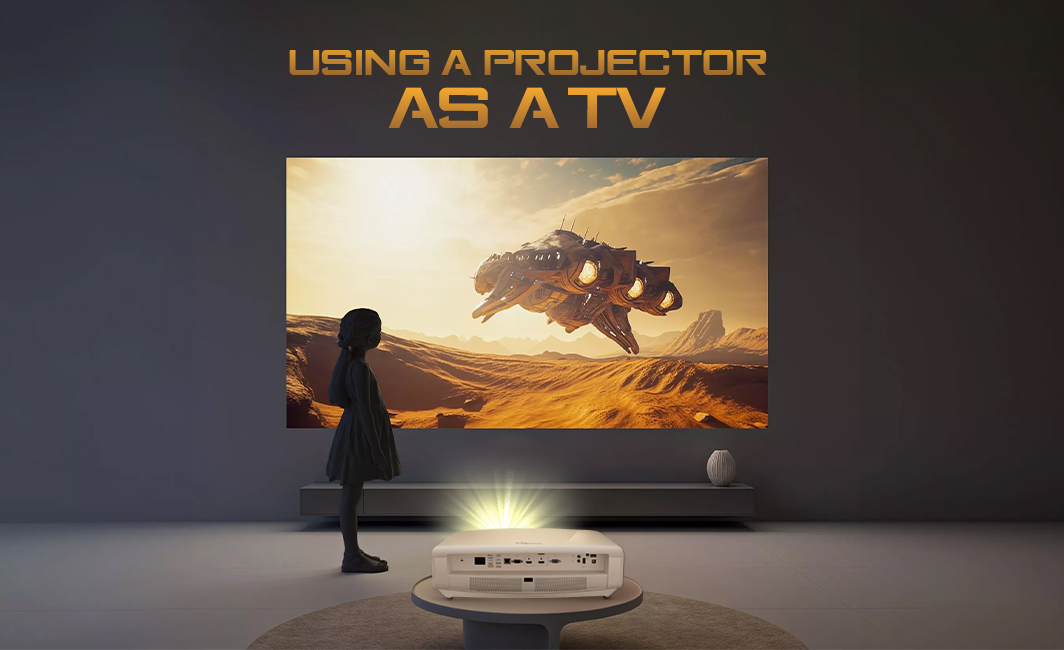
Projectors are used in a wide range of fields and businesses. However, their use is not limited to business use, as they can also be used as a TV for viewing content on television channels. In fact, with the right setup, you can use projectors, an advanced form of TV or even a smart TV. But how to use a projector as a TV? One of the simplest ways is to directly connect a projector with a pre-existing TV HDMI cable and make it an extension of the TV for viewing the content on a wider screen. But this is just one of the ways you can do this.
In this blog, we provide you with insights on how to use a projector as a TV, the key difference between a projector and a TV and more. So, keeping this in mind, let’s get started!
Before we go any deeper on how to use a projector as a TV, you do have to note that while both are used to view content, many projectors are just display devices and need to be connected to a processor such as a TV, PC, a gaming console, or a mobile device. That said, there are smart projectors that have their own processing unit. On the other hand, a TV is a standalone device where you can watch content on different channels and on the internet, depending on whether the TV is smart or not.
But this is not where the difference ends. Some other key differences between a TV and a projector include:
|
Feature |
TV |
Projector |
|
Image Source |
Built-in LED/OLED panel that emits its own light |
Projects light onto an external surface (wall or screen) |
|
Brightness Performance |
High brightness, works well in any lighting |
Best in dark or dim environments; affected by ambient light |
|
Screen Size |
Fixed sizes (typically 32–85 inches) |
Adjustable size (can go 80–150+ inches depending on setup) |
|
Setup Process |
Simple plug-and-play |
Requires positioning, alignment, and sometimes screen setup |
|
Space Requirement |
Needs dedicated wall/furniture space |
Needs projection distance and a suitable surface |
|
Portability |
Fixed in one location |
Portable and can be moved or used outdoors |
|
Audio Setup |
Usually has built-in speakers (better quality in premium models) |
Often needs external speakers for best sound |
|
Best Use Case |
Daily TV watching, convenience-focused viewing |
Home theater, gaming, large-screen immersive viewing |
|
Flexibility |
Limited flexibility in size and placement |
Highly flexible in screen size and setup options |

Now, after covering the key difference between a projector and a TV, let's tackle the main question: how to use a projector as a TV? There are many ways in which you can do this. Among them, there are three that stand out among the rest. These three ways are simple and convenient while also providing you with the best experience. The three key ways to use a projector as a TV include:
This is the closest experience to a traditional TV setup. At the same time, it is also a direct answer to a commonly asked question of how to use a projector as a TV with HDMI. You simply connect your cable or satellite box to the projector using an HDMI cable, just like you would with a TV. Once connected, the projector displays live TV channels directly from the box.
Using streaming devices is the most popular way of transforming a projector into a TV, and one of the best methods for using a projector as a TV. In this method, you plug in devices like a Fire TV Stick, Chromecast, Roku, or Apple TV into the projector's HDMI port. These devices let you stream content from apps like Netflix, YouTube, Disney+, and more. Suitable for: Watching movies and series, streaming movies on demand
Modern projectors have an embedded Android TV/Google TV system. This is just like a smart TV. In such cases, you can directly use apps installed in the projector and do not need additional hardware.
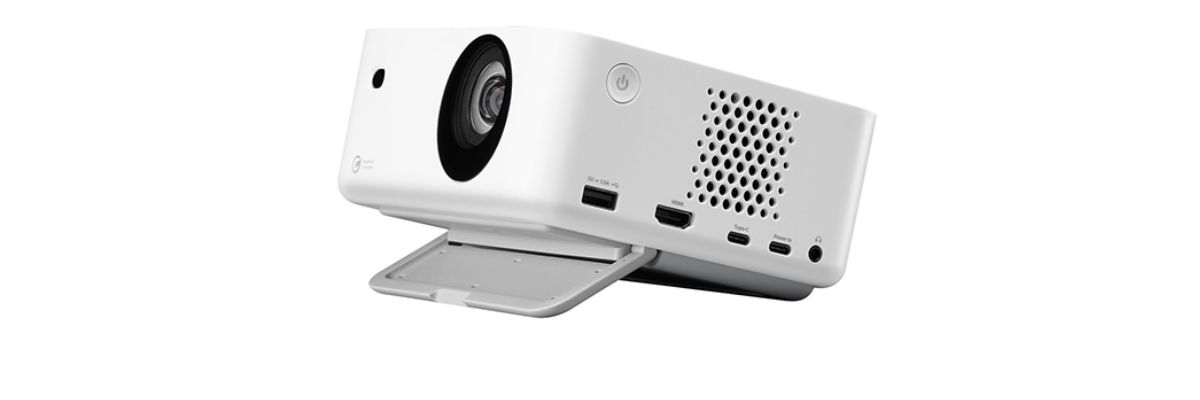
Before you use your projector as a TV, you should note that getting it to do so is not just about getting a TV-like experience; it is about enhancing the experience. Therefore, you should be wary of aspects such as placement, projection surface, and lighting as well.
The location of your projector plays a critical role in determining the quality and size of the projected image. Typically, projectors perform optimally when placed at the proper throw distance from either the wall or the screen surface. The throw distance is the distance at which the projector can produce a specific-sized image.
Your projection surface matters just as much as the projector itself.
A plain white or light-colored smooth wall can work fine for casual use. However, for a better TV-like experience, a dedicated projection screen is ideal because it improves brightness, contrast, and sharpness.
Lighting is an essential consideration when using a projector.
Unlike televisions that emit light, a projector utilizes reflection. As such, any form of lighting reduces the picture quality. To ensure you enjoy your movie, regulate the lighting.
Darkness is the ideal lighting condition for picture quality
If you wish to emulate the TV experience, you can try out some tips that will improve picture quality and audio. These tips help you get a smoother, more reliable viewing experience. Use the right brightness level for your room.
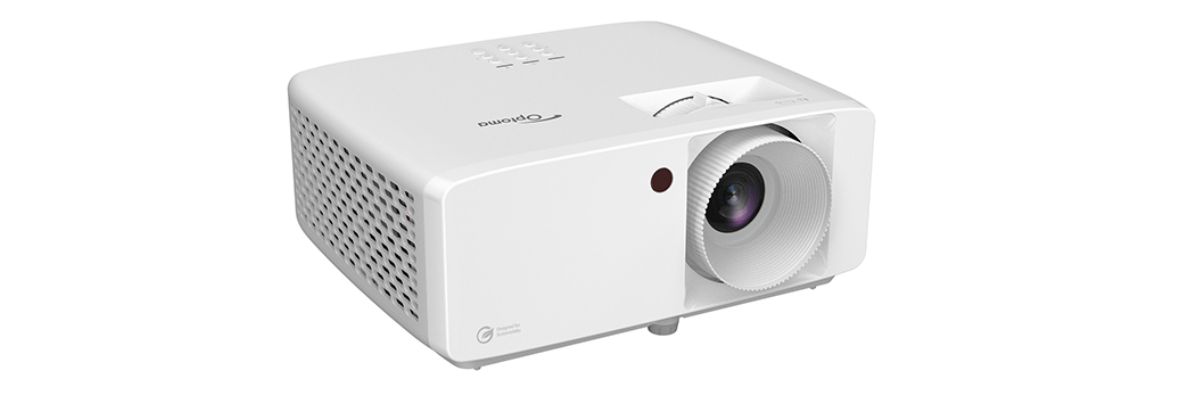
When it comes to purchasing a projector, you have many options available. That said, there are a few that stand out among the rest. Some of the best projectors to use as a TV alongside their price in Nepal are:
|
Projector |
Price in NPR |
|
120,000 |
|
|
Optoma AZH500 (5200 Lumens) DLP FHD Standard Throw Laser Projector with Built-In Speaker |
237,500 |
|
156,250 |
|
|
193,750 |
|
|
293,750 |
Projectors have been on the market for a long time, and they have enhanced the viewing experience ever since their invention. But despite their widespread use, there are still many questions that surround this device. One such question is how to use a projector as a TV. There are many ways to do this, and one of the simplest ways is to connect it with a TV system using an HDMI cable. But besides this, you can also connect it with streaming devices or even get a smart projector with built-in Android or Google TV systems.
In this blog, we provided you with insights on how to use a projector as a TV. We hope you found this helpful. If you seek further insights into the various aspects of the projector, do check out other blogs. And if you want the best projector in Nepal, look no further than Nagmani International - the best distributor of projectors in Nepal.
Connect your media source (TV box, streaming stick, or laptop) to the projector using an HDMI cable. Select the HDMI input on the projector, and it will display content like a regular TV.
Connecting your phone is possible using either screen mirroring wirelessly or a compatible USB-C cable to HDMI. Once connected, your phone will display its screen on the projection for media playback and streaming.
If your devices support wireless casting like Miracast, AirPlay, Chromecast and other similar features, you can use them. Connect to the WiFI network of both devices and launch screen mirroring.
If you want to see the basic image, project it on a smooth white wall. For a higher-quality image, project onto a smooth, light-colored wall.
Connect an HDMI cord from the HDMI output (if present) of the TV to the HDMI port on the projector. Switch the projector on to the right input source in order to show the TV content.
Connect the laptop via HDMI cable (or wirelessly if possible) to the display. Choose "duplicate", "extend display", or similar in the laptop settings.
Use screen casting or mirroring if both devices are compatible, or connect through HDMI if there is an output port on the TV. The most common way to cast is wirelessly, since many TVs don't support HDMI output.
Connect your TV box to your projector with an HDMI cable. Select the HDMI input that corresponds to your TV box and stream live content or watch it directly.